
Red Hat Summit Travel Guide (Part 2)
This is the second part of a two-part Summit guide. Part one is at this link.
Sights to see near San Francisco
Going to the Red Hat Summit in either Boston or San Francisco opens the possibility of seeing some wonderful sights. I’m originally from San Francisco, so I’m focusing on San Francisco instead of Boston.

San Francisco is an amazing city to visit with many remarkable places to see. I and many others made sure to schedule some some time either before or after the Summit for the opportunity to see the rare sights.
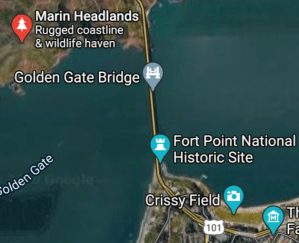
- The Golden Gate Bridge is arguably the most famous icon associated with San Francisco. It has an amazing history, architecture, and magnificent city views making it a very worthwhile spot to visit.
- The non-profit organization San Francisco City Guides has trained volunteers offering free guided walking tours on Thursday and Sunday, yet you can walk across it on your own any other day too. They boast 80 total city tours listed at their website.
- You can capture astounding scenic views of San Francisco by going just North of the bridge to the Marin Headlands. To get there, you could rent an Uber or a bike (it’s a steep climb), among other options.
- I took the bridge photo above with the ship during my visit to the Marin Headlands. I was burned by the sun that day, so be sure to bring sun-block, a good hat and long-sleeve clothing to avoid being scorched by the sun.
- San Francisco is famous for its cable cars. The website sftravel.com recommends “Do This: Hop on the California St. line at its terminus (California and Drumm streets). Lines hardly ever take long, and the ride up to Nob Hill presents you with beautiful views of the city.”

- California is huge, and the logistics of travel can consume a lot of time. You can either focus your travel plans to the local sights and have more time to see things within the San Francisco bay area, or balance your travel time for more distance sights within California. Decide on your travel list accordingly.
- California has so much more to see than what can be discovered immediately. This “small” list has a tremendous amount of worthwhile places to see.
- Monterey California is an amazing city to visit hosting the remarkable Monterey Bay Aquarium in the Historic Cannery Row. Here’s some mistakes to avoid when visiting Monterey.
- Where possible, attempt to check on lodging availability in advance for places you wish to visit, especially highly popular places.
- I’m sure many of the places I’ve listed above will be possibilities for many people reading this. However, consider using Google to search for things to do during your visit for things that you enjoy because there is much more to see that I could possibly cover with this single blog entry.

- Yosemite National Park is a magnificent place to visit. The views are quite breathtaking. Traveling from San Francisco to Yosemite is quite a long drive, so plan duly. Staying at the Ahwahnee Hotel in the Park is very expensive, and the reservations for the hotel fill up fast and early. However, it seems the Wawona Hotel in the park itself offers comparatively less expensive pricing.
- There are some nice places to stay outside Yosemite Park such as the Evergreen Lodge which is not too far away, and they offer some tours. You could rent a vehicle also and visit it, but be aware of the impact of traveling in April in Yosemite because Winter is still an issue. There are even more options through TripAdvisor or Expedia.
- Yosemite does have some camping opportunities, their website says: “From April through September, reservations are essential and even the first-come, first-served campgrounds usually fill by noon (often earlier) from April through September”. There is more listed at the National Parks Service website.
Limits & Fun
Traveling from abroad can take a toll on you with jet-lag and an offset sleep schedule. Please consider the good comments below by jgkootstra on dealing with Jet Lag and travel from abroad. I don’t want to sound like a Public Service Announcement, but be aware of your own limits while traveling, having fun and balancing your time and travel budget. Consider traveling with others, or a group if possible. At a minimum, inform others of your travel plans especially if hiking or camping.
Your own Tips
I can’t have possibly listed all the possible tips for travel and seeing the sights during the Summit. Please chime in with your comments below.

While I am not a representative of Red Hat and my views about Red Hat are just my own, I am a member of the official Red Hat Accelerators community, which gives me the connection to Red Hat and through which I engage with other RHA team members.
FIPS Script-RHEL/CentOS 7
This script implements FIPS found originally in a Red Hat solution.
Cryptography is vital for business, organizations, really for everyone. Cryptography has been around in one form or another for centuries, and has a very rich history.
One aspect of cryptography is the Federal Information Processing Standards or “FIPS”. FIPS is something made by the National Institute of Standards and Technology, or “NIST”.
The government is required to use FIPS wherever possible. FIPS is not just limited in it’s use by the US. FIPS is also not just limited to the federal government. Here’s a quote from that link: “These standards and guidelines are developed when there are no acceptable industry standards or solutions for a particular government requirement. Although FIPS are developed for use by the federal government, many in the private sector voluntarily use these standards.”
Cryptography and FIPS has a diverse application for Operating Systems, Hardware devices, and much more. My focus is with FIPS here is with Red Hat/CentOS Linux. Even the Other Operating system implements FIPS too, as does various flavors of UNIX and other forms of Linux. Many of Red Hat’s products have FIPS capability. Some do not, such as Gluster. However, Red Hat does push to adopt FIPS and for example, the Red Hat Satellite product can have FIPS enabled as of version 6.5. There are some important planning aspects to implement FIPS. Example: On an Identity Management Server (IDM), you must implement FIPS prior to creating the IDM server itself.
When you properly implement FIPS, the certified cryptographic modules are used and forced. Important note: You can use ecdsa and rsa ssh keys but not dsa or ed25519 keys on a FIPS enabled system. Also, use caution with the rescue kernel. If you end up having to boot into emergency mode, NO PASSWORD WILL WORK in emergency mode and you MUST either turn off fips=0 during grub boot (know the grub password please) -or- boot into a boot media such as a DVD or DVD iso if virtual. Ask me how I know.
The implementation for RHEL/CentOS 8 is far easier that version 7. The script I wrote follows the RHEL/CentOS 8 version. You can download it at the gitlab link below.
This code block below is for RHEL/CentOS 8
Link to the Red Hat documentation
# echo "this is for RHEL 8/CentOS 8"
# fips-mode-setup --enable
Setting system policy to FIPS
FIPS mode will be enabled.
Please reboot the system for the setting to take effect.
This code block below is for RHEL/CentOS 7
I created this script below from Red Hat Solution ID 137833 that has the very manual method to implement FIPS. The discussion page for my script is at this link (the Red Hat Discussion forum). I had to implement this across hundreds of systems so I turned this into a script that i also have hosted at gitlab.
This text box below is very wide, scroll left to right as needed.
#!/bin/bash
#
# 10/17/2018 changed uname directives to use "uname -r" which works better in some environments.  Additionally ensured quotes were paired (some were not in echo statements)
#
# this script was posted originally at https://access.redhat.com/discussions/3487481 and the most current edition is most likely (maybe) posted there... maybe.
# updated 8/24/2018 (thanks for those who  provided inputs for update)
#
# Purpose, implement FIPS 140-2 compliance using the below article as a reference
# See Red Hat Article https://access.redhat.com/solutions/137833
##   --  I suspect Red-Hatter Ryan Sawhill https://access.redhat.com/user/2025843 put that solution together (Thanks Ryan).
# see original article, consider "yum install dracut-fips-aesni"
# --> And special thanks to Dusan Baljevic who identified typos and tested this on UEFI
# NOTE: You can create a Red Hat Login for free if you are a developer,
# - Go to access.redhat.com make an account and then sign into
# - developers.redhat.com with the same credentials and then check your email and accept the Developer's agreement.
# Risks...  1) Make sure ${mygrub} (defined in script) is backed up as expected and the directives are in place prior to reboot
# Risks...  2) Make sure /etc/default/grub is backed up as expected and the proper directives are in place prior to reboot
# Risks...  3) Check AFTER the next kernel upgrade to make sure the ${mygrub} (defined in script) is properly populated with directives
# Risks...  4) Be warned that some server roles either do not work with FIPS enabled (like a Satellite Server) or of other issues, and you've done your research
# Risks...  5) There are more risks, use of this script is at your own risk and without any warranty
# Risks...  6) The above list of risks is -not- exhaustive and you might have other issues, use at your own risk.
# Recommend using either tmux or screen session if you are using a remote session, in case your client gets disconnected.
#

##### Where I found most of the directives... some was through my own pain with the cross of having to do stig compliance.
rhsolution="https://access.redhat.com/solutions/137833"
manualreview="Please manually perform the steps found at $rhsolution"

####### check if root is running this script, and bail if not root
# be root or exit
if [ "$EUID" -ne 0 ]
  then echo "Please run as root"
  exit
fi

### bail if command sysctl crypto.fips_enable returns with "1" with the variable $answer below

configured="The sysctl crypto.fips_enabled command has detected fips is already configured, Bailing...."
notconfigured="fips not currently activated, so proceeding with script."

## Dusan's good suggestion...
answer=`sysctl crypto.fips_enabled`
yes='crypto.fips_enabled = 1'

if [ "$answer" == "$yes" ] ; then
        echo -e "\n\t $configured \n"
        exit 1
    else
        echo -e "\n\t $notconfigured \n"
fi

##### uefi check, bail if uefi (I do not have a configured uefi system to test this on)
######- Added 7/5/2018, do not proceed if this is a UEFI system... until we can test it reliably
[ -d /sys/firmware/efi ] && fw="UEFI" || fw="BIOS"
echo -e "$fw"
if [ "$fw" == "UEFI" ] ; then
        echo -e "\n\tUEFI detected, this is a ($fw) system.\n\setting \$fw variable to ($fw)..."
        mygrub='/boot/efi/EFI/redhat/grub.cfg'
        ### Thanks Dusan Baljevic for testing this.
        ### exit 1
    else
        echo -e "\n\t($fw) system detected, proceeding...\n"
    mygrub='/boot/grub2/grub.cfg'
fi

##### rhel6 check really don't run this on a rhel6 box... and bail if it is rhel 6
myrhel6check=`uname -r | egrep 'el6'`
if [ "$myrhel6check" != "" ] ; then
        echo -e "\n\tThis system is not RHEL 7, and Red Hat 6 is detected, \n\tThis script is intended for RHEL 7 systems only, bailing!!!\n"
        exit 1
   else
        echo -e "\n\tRHEL 7 detectd, proceeding\n"
fi

##### rhel5 check really don't run this on a rhel5 box... and bail if it is rhel5
myrhel5check=`uname -r | egrep el5`
if [ "$myrhel5check" != "" ] ; then
        echo -e "\n\tThis system is not RHEL 7, and Red Hat 5 is detected, \n\tThis script is intended for RHEL 7 systems only, bailing!!!\n"
        exit 1
   else
        echo -e "\n\tNot RHEL 5, so proceeding...\n"
fi

##### only run if this returns  el7 in the grep
# overkill? you bet, don't run unless this is rhel7
myrhel7check=`uname -r | grep el7`
if [ "$myrhel7check" != "" ] ; then
        echo "RHEL 7 detected, Proceeding"
   else
        echo -e "\n\tThis system is not rhel7, \n\tBailing..."
        echo exit 1
fi

######- add a second to $mydate variable
sleep 1
mydate=`date '+%Y%m%d_%H_%M_%S'`;echo $mydate

##### make backup copy $mygrub defined earlier
cp -v ${mygrub}{,.$mydate}

##### check fips in grub, if it's there, bail, if not proceed
myfipscheckingrub=`grep fips $mygrub | grep linux16 | egrep -v \# | head -1`
if [ "$myfipscheckingrub" != "" ] ; then
        echo -e "FIPS directives detected in ($mygrub), \n\t\t($myfipscheckingrub)\n\tSo, recommend AGAINST running this script\n\t$manualreview"
        exit 1
    else
        echo -e "\n\tFIPS directives not detected in ($mygrub)\n\tproceeding..."
fi

##### fips should not be in /etc/default/grub, if so, bail
etcdefgrub='/etc/default/grub'
myfipschecketcdefgrub=`grep fips $etcdefgrub | grep -v \#`
if [ "$myfipschecketcdefgrub" != "" ] ; then
        echo -e "FIPS directives detected in ($etcdefgrub), \n\t\t($myfipschecketcdefgrub)\n\tSo, recommend AGAINST running this script\n\t$manualreview"
        echo exit 1
    else
        echo -e "\n\tFIPS directives not detected in ($etcdefgrub)\n\tproceeding..."
fi

##### verify that this system is actually in the same kernel as we're going to install this in..., or bail
# if they don't match, the script bails.
mydefkern=`grubby --default-kernel | sed 's/.*vmlinuz\-//g'| awk '{print $1}'`
myuname=`uname -r`
if [ "$mydefkern" != "$myuname" ] ; then
   echo -e "\n\tKernel Mismatch between running and installed kernel...\n\tThe default kernel is: $mydefkern\n\tThe running kernel is $myuname\n\n\tPlease reboot this system and then re-run this script\n\tBailing...\n"
   exit 1
  else
 echo "Default Kernel ($mydefkern) and Current Running Kernel ($myuname) match, proceeding"
fi

##### overkill, yes
# yes, there's an number of checks above, but I'm still persisting with this, just in case someone runs this script twice.
# it will never reach this if it fails any of the previous checks, but I'll leave it.
#####  a file named "/root/fipsinstalled" is created at the end of this script.  So I'll check for it at the beginning so that this script is only ran once.
if [ -f /root/fipsinstalled ] ; then
   sysctl crypto.fips_enabled
   echo -e "\tThis script was ran previously,\n\t nothing to do, \n\texiting..."
   exit 1
 else
   echo "continuing" >/dev/null
   echo proceeding...
fi
############################################################################################
############################################################################################
############################################################################################

##### this is where the script actually begins to make modifications.
# -- everything before was either a check, or a backup of a config
# Only install dracut-fips if it is not installed (that's the "||" below)
rpm -q dracut-fips > /dev/null || yum -y install dracut-fips

##### warn people not to bail at this point, pause 4 seconds so they might see it if they're watching the screen.
echo -e "\n\n\n\tWARNING!!!: \n\tWARNING!!!DO NOT INTERRUPT THIS SCRIPT OR IT CAN CAUSE \n\tTHE SYSTEM TO BECOME UNBOOTABLE!!!!\n\tPlease be patient it will take some time...\n\tWARNING!!!\n\tWARNING\n\n\n"
sleep 4
##### next disable prelinking
rpm -q prelink >/dev/null && grep PRELINKING /etc/sysconfig/prelink

##### slightly lesser known use of sed, it only flips PRELINKING to "no"
# this flips "yes" to "no" in the prelink config file, next kills prelinking
rpm -q prelink >/dev/null && sed -i '/^PRELINKING/s,yes,no,' /etc/sysconfig/prelink
rpm -q prelink >/dev/null && prelink -uav 2>/tmp/err
/bin/cp -v /etc/aide.conf{,.undofips}
rpm -q prelink >/dev/null && sed -i 's/^NORMAL.*/NORMAL = FIPSR+sha512/' /etc/aide.conf

##### update the $mydate variable which is used to copy off backups of various configs throughout the rest of this script.
mydate=`date '+%Y%m%d_%H_%M_%S'`;echo $mydate

###-----###
# back up existing initramfs
mv -v /boot/initramfs-$(uname -r).img{,.$mydate}

##### warn people not to bail at this point, pause 4 seconds so they might see it if they're watching the screen.
##### really, don't interrupt this portion.
echo -e "\n\n\n\tWARNING!!!: \n\tWARNING!!!DO NOT INTERRUPT THIS SCRIPT OR IT CAN CAUSE \n\tTHE SYSTEM TO BECOME UNBOOTABLE!!!!\n\tPlease be patient it will take some time...\n\tWARNING!!!\n\tWARNING!!!\n\n\n"
# this pauses as before so the person running this script gets a chance to see the above, it also is to allow the $mydate variable below to get a new value
sleep 3
# run dracut
dracut
mydate=`date '+%Y%m%d_%H_%M_%S'`
###-----###

###### The Red Hat solution I cited earlier in the comments, this is where this came from
# this section below updates /boot/grub/grub.cfg with fips and the uuid of the boot device
# first back it up
/bin/cp ${mygrub}{,.$mydate}
grubby --update-kernel=$(grubby --default-kernel) --args=fips=1

###### this displays the kernel lines in grub with fips
grep fips ${mygrub} | grep linux16

###### that Red Hat solution I cited earlier in the comments, this is where this came from
# set the uuid variable to be used later
uuid=$(findmnt -no uuid /boot)
echo -e "\n\t Just for reference, the /boot uuid is: ($uuid)\n"

###### that Red Hat solution I cited earlier in the comments, this is where this came from
# update  the boot uuid for fips in ${mygrub}
# the 2nd line is to satisfy the disa stig checker which checks every single menu entry linux16 line.  without it, the check fails.
[[ -n $uuid ]] && grubby --update-kernel=$(grubby --default-kernel) --args=boot=UUID=${uuid}
# update 7/23/2019.  The next line is excessive.  The impact of the next line, when the system goes to emergency mode, and you select **any** kernel at grub, you are faced with a system that **will not** accept any password.  I've removed it for the rescue kernel.
## so maybe your security people require this. **IF** the do, then know that when you go to emergency mode, you **will** require the grub password (know it in advance!) and you ought to set **one time only** the grub line to fips=0 **for a one time only boot**
#
#sed -i "/linux16 \/vmlinuz-0-rescue/ s/$/ fips=1 boot=UUID=${uuid}/"  ${mygrub}

###### that Red Hat solution I cited earlier in the comments, this is where this came from
# update /etc/default/grub for subsequent kernel updates. this APPENDS to the end of the line.
sed -i "/^GRUB_CMDLINE_LINUX/ s/\"$/  fips=1 boot=UUID=${uuid}\"/" /etc/default/grub
grep -q GRUB_CMDLINE_LINUX_DEFAULT /etc/default/grub || echo 'GRUB_CMDLINE_LINUX_DEFAULT="fips=1"' >> /etc/default.grub
echo -e "\n\tThe next line shows the new grub line with fips in the two locations below:\n"
grep $uuid ${mygrub} | grep linux16
echo;grep $uuid /etc/default/grub

### warning ### warning ###
### Note, if you do not change Ciphers and MACs prior to reboot, you will NOT be able to ssh to the system.  That could be a problem depending on the distance or difficulty of getting a console or physical access to fix after reboot.  Be warned.
###
mydate=`date '+%Y%m%d_%H_%M_%S'`;echo $mydate
cp -v /etc/ssh/sshd_config{,.$mydate}

# without this, no ssh, really, ask me how I know
sed -i 's/^Cipher.*/Ciphers aes128-ctr,aes192-ctr,aes256-ctr/' /etc/ssh/sshd_config
sed -i 's/^MACs.*/MACs hmac-sha2-256,hmac-sha2-512/' /etc/ssh/sshd_config

# bread crumbs
touch /root/fipsinstalled
chattr +i /root/fipsinstalled

###### the command to check this after reboot is: sysctl crypto.fips_enabled
echo -e "\n\tScript has completed.  \n\tSystem must be rebooted for fips to be enabled.  \n\tPlease check the following 2 files for sane entries:\n\t/etc/default/grub \n\t${mygrub}.  \n\n\tAlso, --AFTER--REBOOT--as-root-- run sysctl crypto.fips_enabled and the output must be \n\t'crypto.fips_enabled = 1' \n"

##### without this, the disa provided stig checker fails fips compliance, you're welcome
echo 'GRUB_CMDLINE_LINUX_DEFAULT="fips=1"' >> /etc/default/grub
rpm -q prelink > /dev/null && rpm -e prelink > /dev/null
##### Same with this...
/bin/chmod 0600 /etc/ssh/ssh_host*key
While I am not a representative of Red Hat and my views about Red Hat are just my own, I am a member of the official Red Hat Accelerators community, which gives me the connection to Red Hat and through which I engage with other RHA team members.
 CodeMoose